Turbo C++ 3.0

How to install Turbo C++ on Windows 7
We are providing detailed procedure how to install Turbo C++ on Windows 7. The very same procedure can be used on Win Vista. If you are running 64 bit version of Win 7, read this article. Users having Win 7 Pro and Win 7 Ultimate should use the virtual Windows XP Mode to install Turbo C++.
Installing Turbo C++ on Windows 7
| 1. Extract the zip files to: e.g. C:\TurboC |

Extract zip files
|
| 2. Run the install: C:\TurboC\INSTALL.EXE |

Run the install
|
| 3. Press Enter to continue |

Press Enter to continue
|
| 4. Enter the Source drive: e.g.C and press Enter to continue |

Enter the Source drive
|
| 5. Enter the Source path: \TURBOC and press Enter to continue |

Enter the Source path
|
| 6. In directories specify where Turbo C files are copied. E.g. C:\TC . When done go to start instalation and press Enter |

Specify where Turbo C++ files are copied
|
| 7. Succesfull instalation |

Succesfull instalation
|
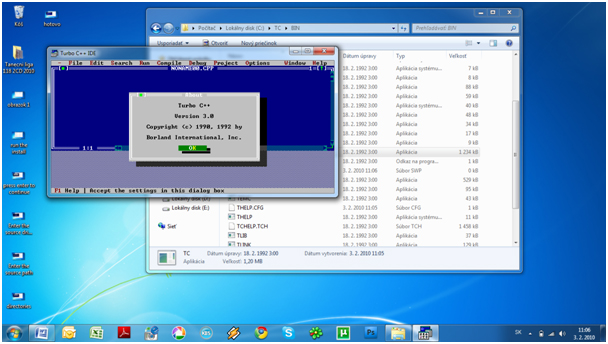
| 8. First launch from your destination e.g. C:\TC\BIN\TC.EXE |
First launch from your destination
How to install Turbo C++ on Windows 7 64bit
Few days ago we have posted an article about installing Turbo C++ on 32 bit Windows 7. Now we are providing step-by-step procedure how to install Turbo C++ on 64 bit Windows 7.
| 1. Install the software DOSBox ver 0.73 : download here |
| 2. Create a folder,for example „Turbo“ (c:\Turbo\) |
| 3. Download and extract TC into the Turbo folder (c:\Turbo\): download here |
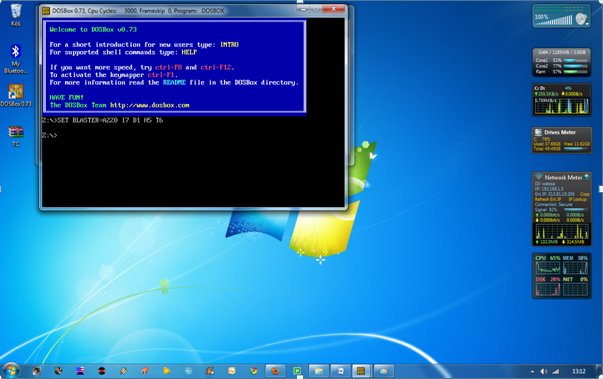
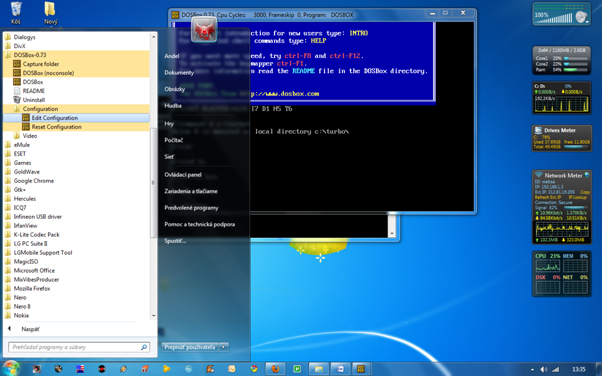
| 4. Run the DOSBox 0.73 from the icon located on the desktop: |
 |
|
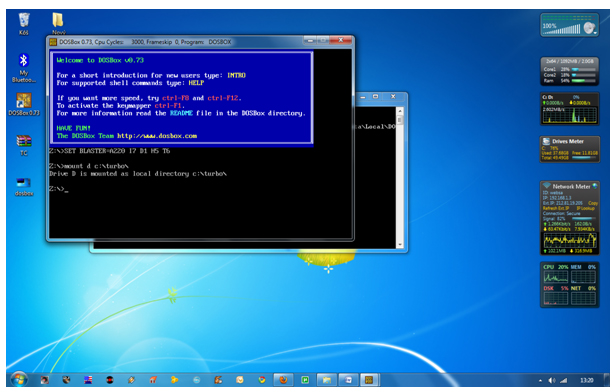
| 5. Type the following commands at the command prompt [Z]: mount d c:\Turbo\ [The folder TC is present inside the folder Turbo] |
| Now you should get a message which says: Drive D is mounted as a local directory c:\Turbo\ |
 |
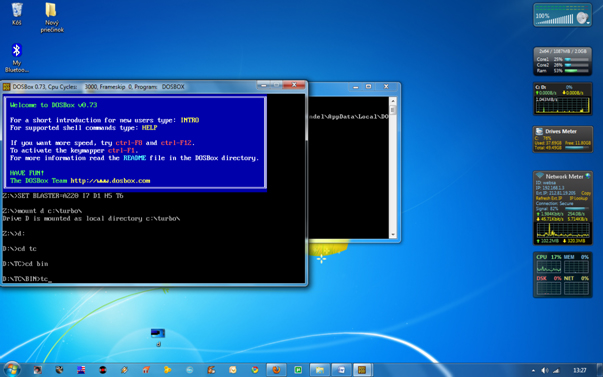
| 6. Type d: to shift to d: |
 |
7. Next follow the commands below:
cd tc
cd bin
tc or tc.exe [This starts you the Turbo C++ 3.0] |
 |
| 8. In the Turbo C++ goto Options>Directories> Change the
source of TC to the source directory [D] ( i.e. virtual D: refers to
original c:\Turbo\ . So make the path change to something like
D:\TC\include and D:\TC\lib respectively ) |
How to start TurboC++ in the DOSBox automatically:
You can save yourself some time by having DOSBox automatically mount your folders and start TurboC++: |
| For DOSBox versions older then 0.73 browse into program installation
folder and open the dosbox.conf file in any text editor. For version
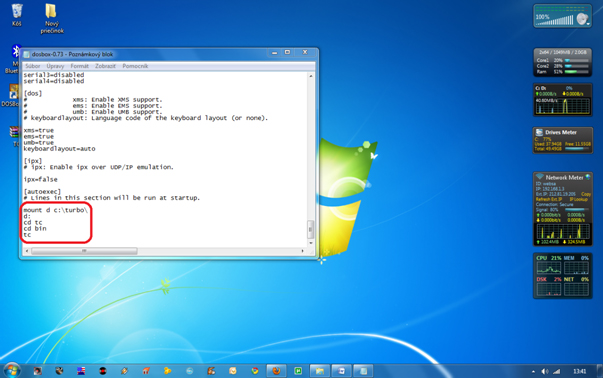
0.73 go to Start Menu and click on “Configuration” and then “Edit Configuration“. Then scroll down to the very end, and add the lines which you want to automatically execute when DOSBox starts. |
| Automatically mount and start Turbo C++3.0 in DOSBox ver 0.73: |
 |
| Scroll down to the very end, and add the lines: |
 |
| Those commands will be executed automatically when DOSBox starts! |
Please note:
Full screen: Alt and Enter
When you exit from the DosBox [precisely when u unmount the virtual
drive where Turbo C++ 3.0 has been mounted] all the files you have saved
or made changes in Turbo C++ 3.0 will be copied into the source
directory(The directory which contains TC folder)
Don’t use shortcut keys to perform operations in TC because they
might be a shortcut key for DOSBOX also . Eg : Ctrl+F9 will exit DOSBOX
rather running the code .
VIDEO tutorial (there is another setup – original path to Turbo C++ is h:\tc\ and drive H is mounted as drive C:)
|
|





No comments:
Post a Comment